
Download ChromeCacheView – Free Windows Chrome Cache Viewer Tool
Overview
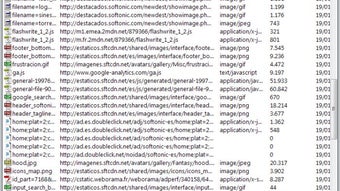
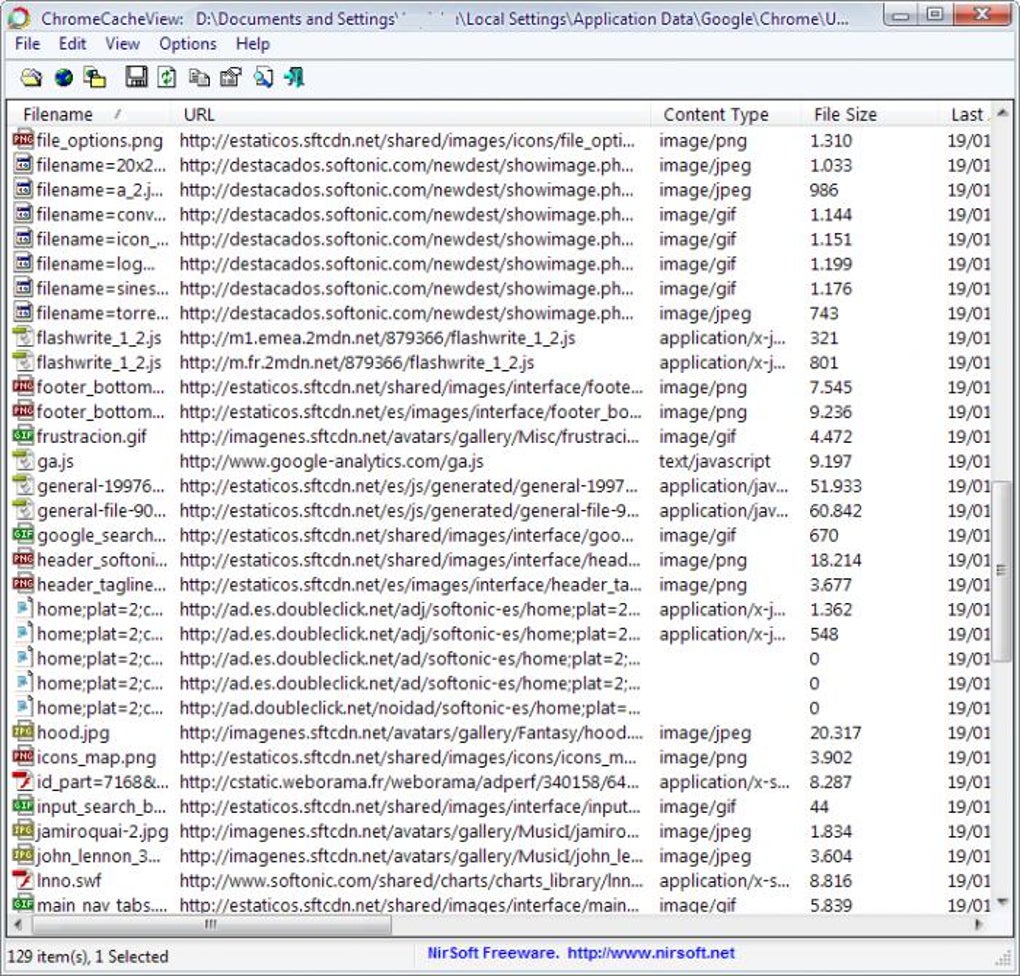
ChromeCacheView is a lightweight, free utility developed by NirSoft that lets Windows users inspect the cache files stored by Google Chrome. First released in 2012 and still popular today, the program provides a clear, tabular view of every cached item—images, HTML pages, scripts, and other resources—without requiring any deep technical knowledge. The tool is especially useful for developers, forensic analysts, or anyone who wants to free up disk space by identifying and deleting obsolete cache entries.
ChromeCacheView runs on Windows 98 and all later versions, and it is distributed in a single, portable executable, meaning there is no installation wizard, no registry clutter, and no background services. Its user‑friendly interface lists cache entries with columns for URL, content type, size, expiration date, and last access time, while a built‑in preview pane lets you view image thumbnails or text snippets directly. Because it is a pure Windows‑only solution, the application does not compete with cross‑platform alternatives that often require Java or Python runtimes.
The program’s small footprint—under 2 MB—makes it ideal for low‑resource machines, and its free license encourages widespread adoption across the globe, as reflected by the more than 10,000 downloads since its catalog entry in 2012. Whether you need to troubleshoot loading problems, extract hidden resources, or simply clean up a bloated Chrome profile, ChromeCacheView offers a fast, secure, and straightforward way to manage your browser cache.
Key Features
- Complete cache enumeration: Lists every cached object with details such as URL, MIME type, size, expiration date, and last access time.
- Preview capability: Shows a live preview of images, text files, and other supported formats directly within the application.
- Export options: Allows you to export selected cache entries to a folder, or save the entire list as CSV, HTML, or XML for further analysis.
- Search and filter: Built‑in search box and column sorting make it easy to locate specific URLs or filter by content type.
- Portable execution: No installation required; simply run the .exe file and start browsing the cache immediately.
- Lightweight design: Consumes minimal RAM and CPU, making it suitable for older hardware or virtual machines.
- Secure handling: Reads cache files in read‑only mode, ensuring that original data is never altered unless you explicitly delete entries.
- Multilingual support: Although the primary distribution is English, the interface can be localized via external resource files.
- Regular updates: Although the last major release was in 2012, the tool remains compatible with modern Chrome versions thanks to its robust parsing engine.
- Free for personal and commercial use: No license fees, no ads, and no hidden telemetry.
Installation & Usage Guide
Step‑by‑step installation (or rather, deployment)
Because ChromeCacheView is distributed as a portable executable, the “installation” process is intentionally simple. Follow these steps to get the program up and running:
- Visit the official NirSoft download page and click the Download ChromeCacheView link. The file is typically named
ChromeCacheView.zip. - Save the ZIP archive to a convenient location, such as your desktop or a dedicated tools folder.
- Right‑click the ZIP file and choose Extract All…. Extract the contents to a folder of your choice; you will see a single
ChromeCacheView.exefile along with aReadme.txtfile. - Double‑click
ChromeCacheView.exe. Windows may display a SmartScreen warning because the file is unsigned; click More info and then Run anyway if you trust the source (NirSoft is a well‑known developer). - The main window opens, automatically scanning the default Chrome cache folder (usually
%LocalAppData%\Google\Chrome\User Data\Default\Cache). If Chrome is installed in a custom location, you can manually point the tool to the correct directory via File → Select Cache Folder….
How to explore and manage Chrome cache entries
Once the program loads, you will see a table populated with cache items. Each row represents a single cached resource. Use the column headers to sort by size, date, or type—click a header to toggle ascending/descending order. The built‑in search bar at the top lets you filter results in real time; type part of a URL or MIME type to narrow the list instantly.
To preview an entry, simply click the row and look at the lower pane. Images appear as thumbnails, while text files show a snippet of the content. If you need to extract a file, right‑click the entry and choose Copy Selected Items To…. Select a destination folder, and ChromeCacheView will write the raw cache data to disk, preserving the original file name when possible.
For bulk operations, use the Select All button, then choose Delete Selected Items to purge unwanted cache entries. The tool asks for confirmation before any deletion, ensuring that you do not accidentally lose important data. Finally, if you want to keep a record of the cache state, go to File → Save As… and export the list to CSV, HTML, or XML. This export can be imported into spreadsheet programs or used for forensic documentation.
Compatibility, Pros & Cons
Supported Operating Systems
ChromeCacheView runs on all Windows versions from Windows 98 up to Windows 11 (both 32‑bit and 64‑bit builds). Because it is a pure Win32 application, it works flawlessly on older hardware without requiring .NET Framework or Visual C++ redistributables.
Pros
- Zero‑installation: Portable executable means no registry changes or admin rights needed.
- Lightweight footprint: Under 2 MB file size and negligible memory usage.
- Detailed cache information: Provides comprehensive metadata for each cached object.
- Export & preview features: Easy extraction of files and visual previews.
- Free and ad‑free: No hidden costs, no bundled software.
- Secure read‑only mode: Prevents accidental corruption of cache files.
- International popularity: Widely used in China and other regions, indicating reliable localization and community support.
Cons
- Windows‑only: No native macOS, Linux, Android, or iOS versions.
- No automatic updates: Users must manually download newer releases.
- Limited UI customization: The interface is functional but lacks modern theming options.
- Outdated documentation: The official Readme has not been refreshed for newer Chrome versions, though the tool still works.
- No built‑in cache cleaning schedule: Users must run the program manually to purge cache.
Frequently Asked Questions
Is ChromeCacheView safe to use on a production machine?
Yes. ChromeCacheView reads cache files in read‑only mode and only modifies data when you explicitly delete or export entries. It does not contain any spyware, ads, or background services, making it safe for both personal and enterprise environments.
Can I use ChromeCacheView to recover deleted web pages?
Only if the page’s resources are still present in the Chrome cache. The tool can display and export cached files, but it cannot reconstruct pages that have already been purged by Chrome’s automatic cache eviction.
Does ChromeCacheView work with Chromium‑based browsers other than Google Chrome?
Yes. Because most Chromium‑based browsers (Edge, Brave, Opera) store cache in a similar format, you can point ChromeCacheView to their cache directories manually. The tool will parse and display the entries as long as the file structure matches Chrome’s cache layout.
How do I update ChromeCacheView to the latest version?
Visit the official NirSoft website, download the newest ZIP archive, and replace the old ChromeCacheView.exe with the new one. Because the program is portable, no installer or uninstall process is required.
Can ChromeCacheView run on Windows Server editions?
Absolutely. The executable is built for the generic Win32 API, so it runs on Windows Server 2008, 2012, 2016, 2019, and newer editions without any additional dependencies.
Conclusion & Call to Action
ChromeCacheView remains one of the most practical, free utilities for anyone who needs direct access to Google Chrome’s cache files on Windows. Its portable nature, clear interface, and comprehensive export options make it a go‑to tool for developers troubleshooting loading issues, forensic analysts documenting web activity, or power users simply looking to reclaim disk space. While it lacks cross‑platform support and automatic updates, these minor drawbacks are outweighed by its zero‑cost, zero‑bloat design and the reliability that NirSoft has built over decades.
If you’re ready to take control of your browser cache, download ChromeCacheView now and start exploring cached resources in seconds. The tool’s small size ensures a quick download, and because it’s completely free, you can deploy it across multiple machines without worrying about licensing. Keep the ZIP file handy for future updates, and remember to run the executable with appropriate permissions if you plan to delete cache entries. Happy caching!







